Keba | P30 x-series/Dienstwagen-Edition OCPP - Configuration for ChargePilot

Modified on Mon, 16 Feb at 10:13 AM

Before starting the configuration, please check the charger firmware version complies with the latest compatible firmware version.

Connection to the charger

Local connection

  • Open web server

  • After reboot the IP-Address of the charger is shown in display

    • Connect via switch to the same Network

    • Check/adjust network settings on your PC

    • Enter IP address of the charger in your web browser

  • Login and go to settings

    • The login credentials for the initial login to the web interface are provided on the configuration label. The configuration label is located in a bag that is included with the mounting materials. After the initial login, the password must be changed for security reasons.


Login Data:

Username: <acquired from the vendor>
PW: <aquired from the vendor or customer>

Open Login_Screen.PNG

Network settings

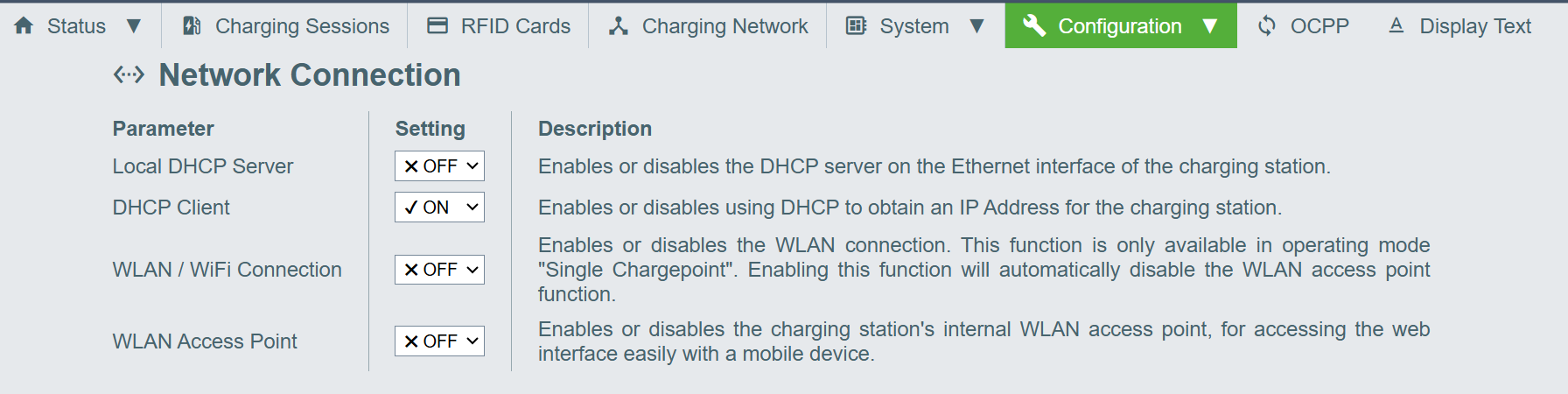
On the Configuration → Network Connection page configure the parameters as follows:

  • Local DHCP Server: OFF
  • DHCP Client: ON
  • WLAN / WiFi Connection: OFF
  • WLAN Access Point: OFF

On the OCPP → Proxy page configure the parameters as follows:

  • Proxy Server: OFF

OCPP settings

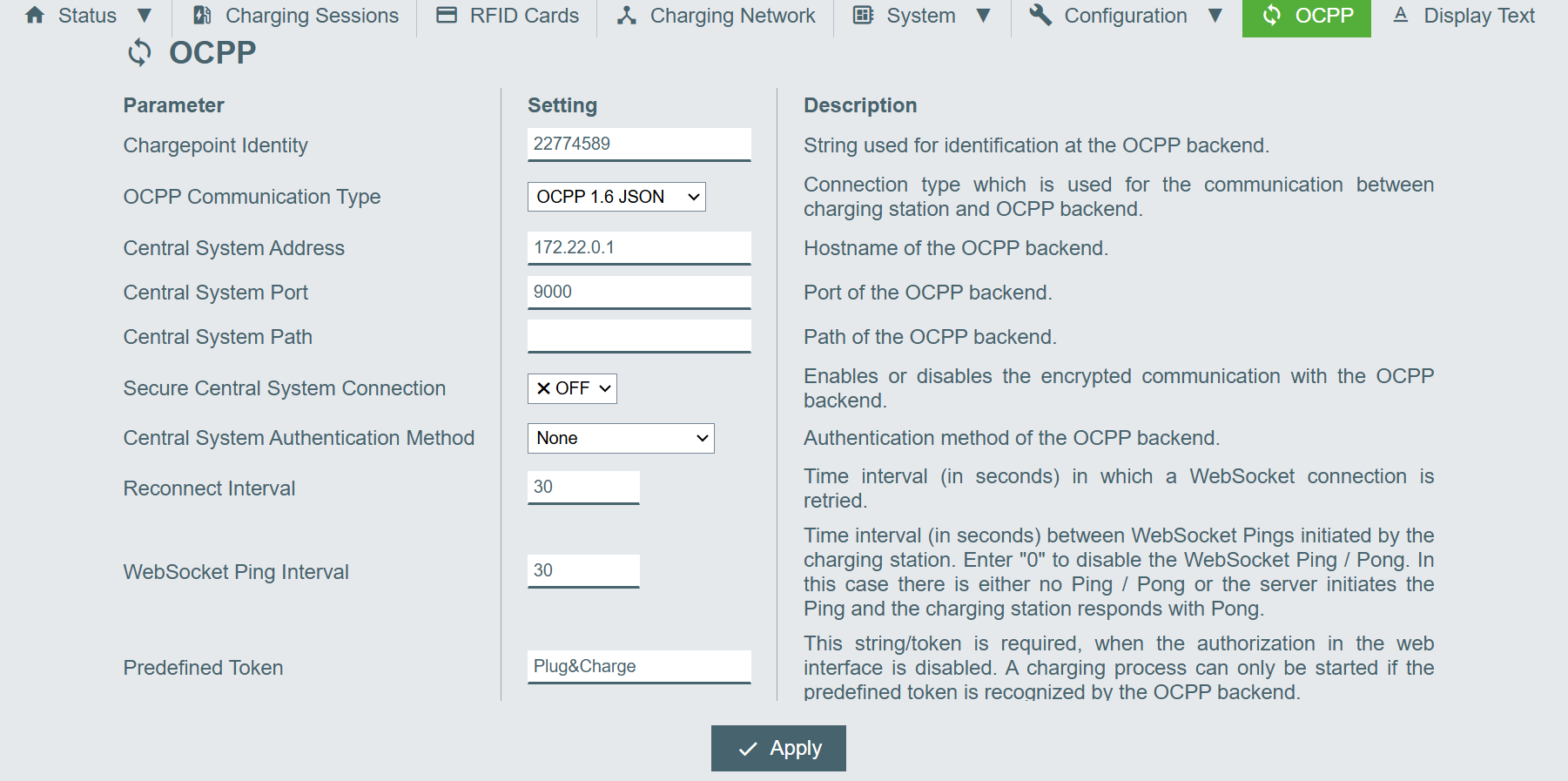
On the OCPP page configure the parameters as follows:

  • ChargePoint Identity: Serial Number

  • OCPP Communication Type: OCPP 1.6 JSON

  • Central System Address: 172.22.0.1

  • Central System Port: 9000

  • Secure Central System Connection: OFF

Other charger settings

Authorization Settings

  • On the Charging Network page, configure No. of charging stations to 1
  • On the Configuration → Device page configure the parameters as follows:

    • Authorization: ON

    • Online Authorzation Mode: FirstOnline

    • Offline Authorization Mode: OfflineLocalUnknownAuthorization

    • Click “Get Browser Time”

    • Rest parameters: ON


Autocharge/Free charging settings

When this function is activated, charger starts transaction either with the predefined identifier (Plug&Charge) in the charger, or with the EV MAC address. 

  • On the Configuration → Device page, set the parameter “Authorization” to OFF

  • On the OCPP page, change the Predefined Token to Plug&Charge

Offline behaviour settings

  • Offline Authorization mode: OfflineLocalAuthorization

  • Apply changes

Open image-20230411-144532.png

DIP Switch Settings at the charger

  • Disable UDP Server

  • Deactivate dip switch 1.3 (Position = OFF)

  • Charging Current

    • DIP-Switch 1.6-1.8

Network & Charge Point Parameter

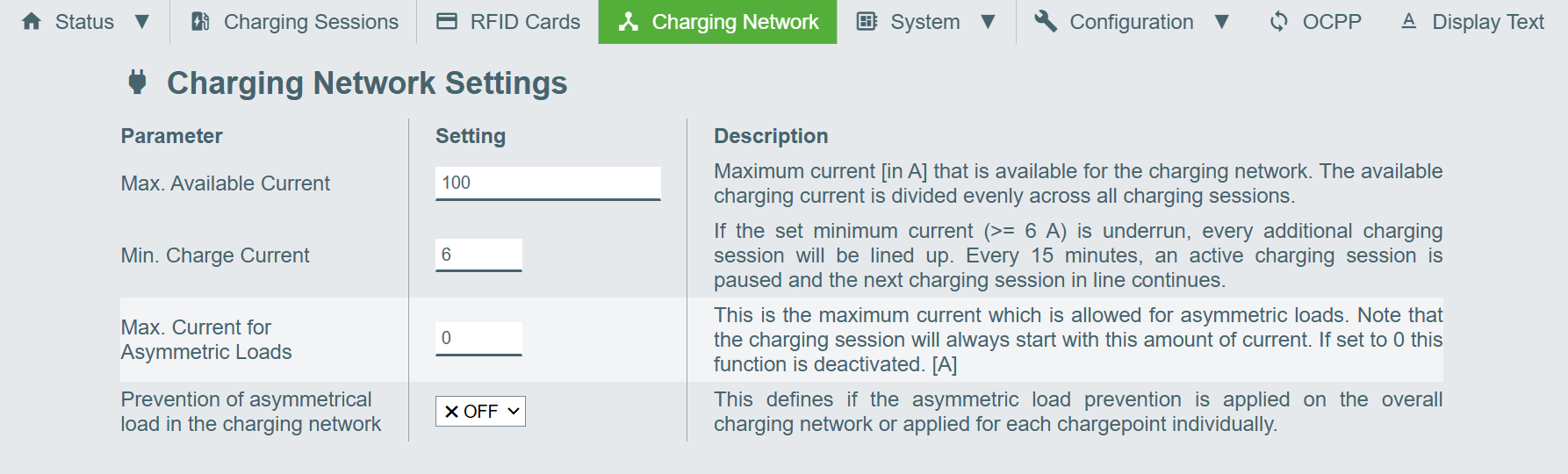
On the Charging Network → Charging Network Settings  page configure the parameters as follows:

  • Min Charge Current: 6

  • Max Charge Current for Asymmetric Loads: 0

Was this article helpful?

That’s Great!

Thank you for your feedback

Sorry! We couldn't be helpful

Thank you for your feedback

Let us know how can we improve this article!

Select at least one of the reasons

Feedback sent

We appreciate your effort and will try to fix the article