Before starting the configuration, please check the charger firmware version complies with the latest compatible firmware version.Connection to the charger | |
Local connectionConnect to the charger web interface
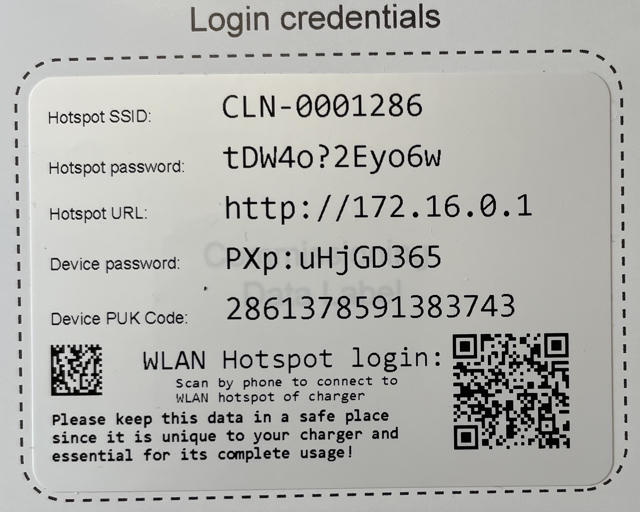
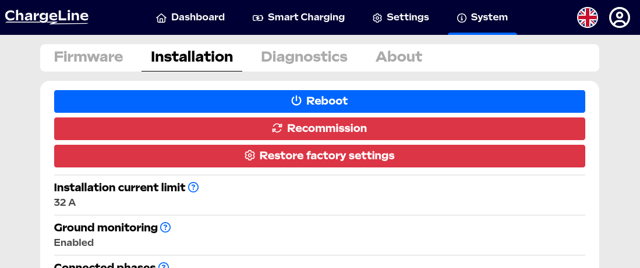
For the first connection/commissioning, you will land on an installation wizard page. For already commissioned charger you can navigate to the page System → Installation → Recommission to start the commissioining process Login Data:
|  For the first connection/commissioning, you will land on an installation wizard page
For already commissioned charger |
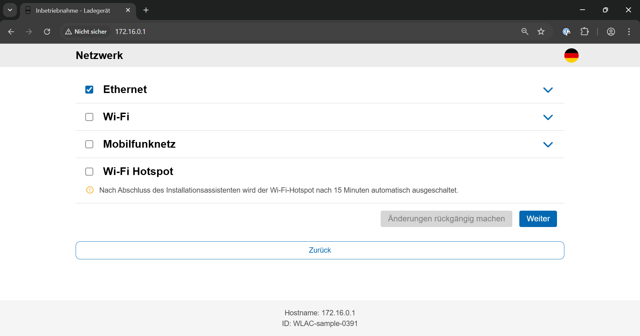
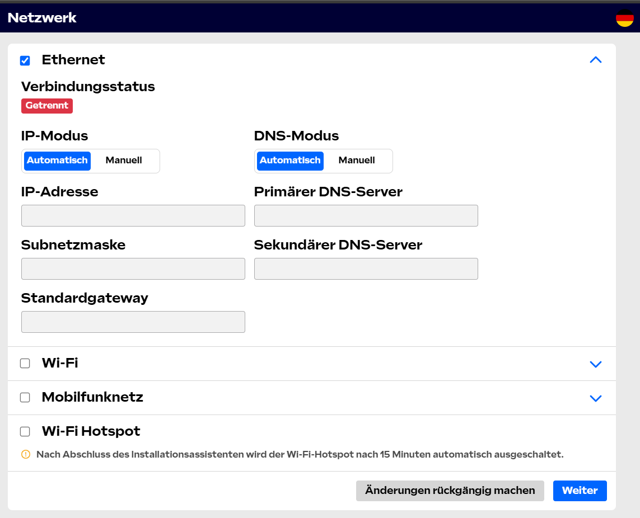
Network settings | |
EthernetOn the Network page configure the parameters as follows:
|   |
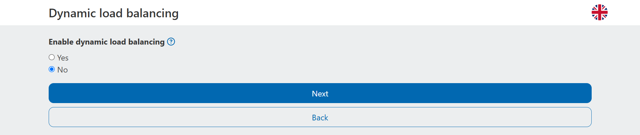
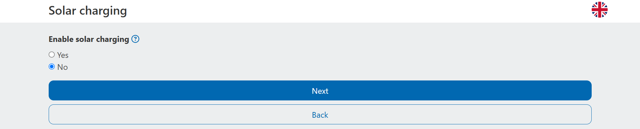
Load Management settings | |
On the General Installation page configure the parameters as follows:
|    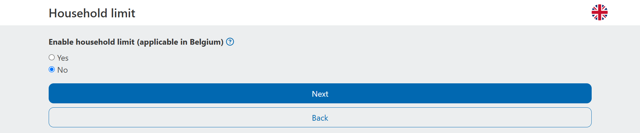 |
OCPP settings | |
On the Authorization page configure the parameters as follows: Backend
NTP ServerExpand the advanced settings and configure the parameters as follows (if missing):
On the last settings page, click Finish & restart. | 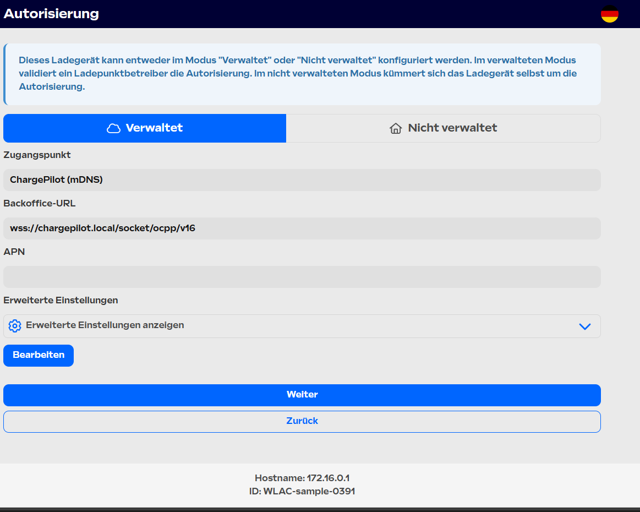 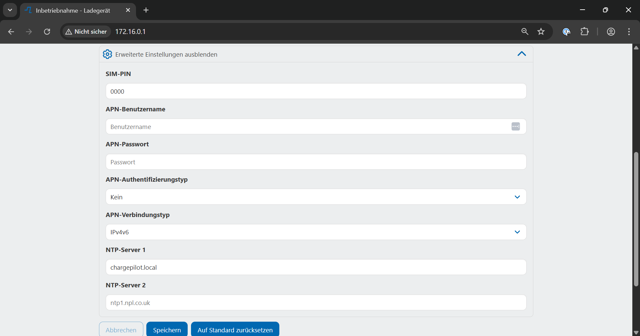 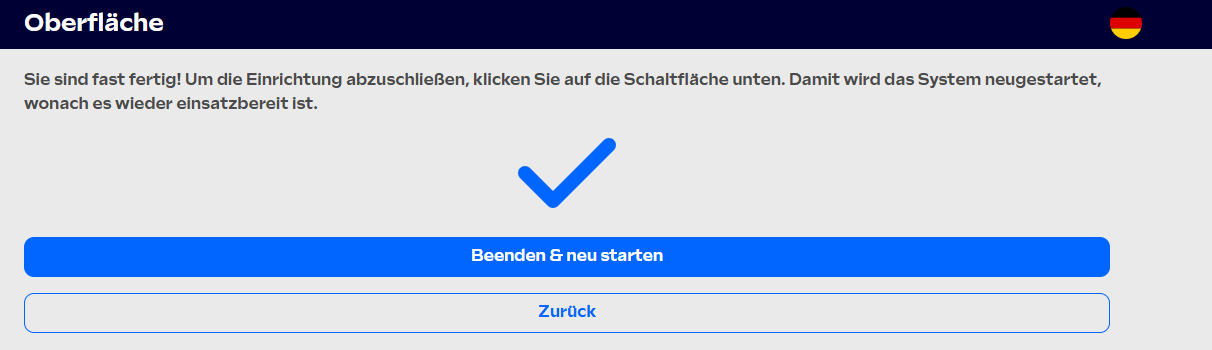 |
Was this article helpful?
That’s Great!
Thank you for your feedback
Sorry! We couldn't be helpful
Thank you for your feedback
Feedback sent
We appreciate your effort and will try to fix the article