Overview
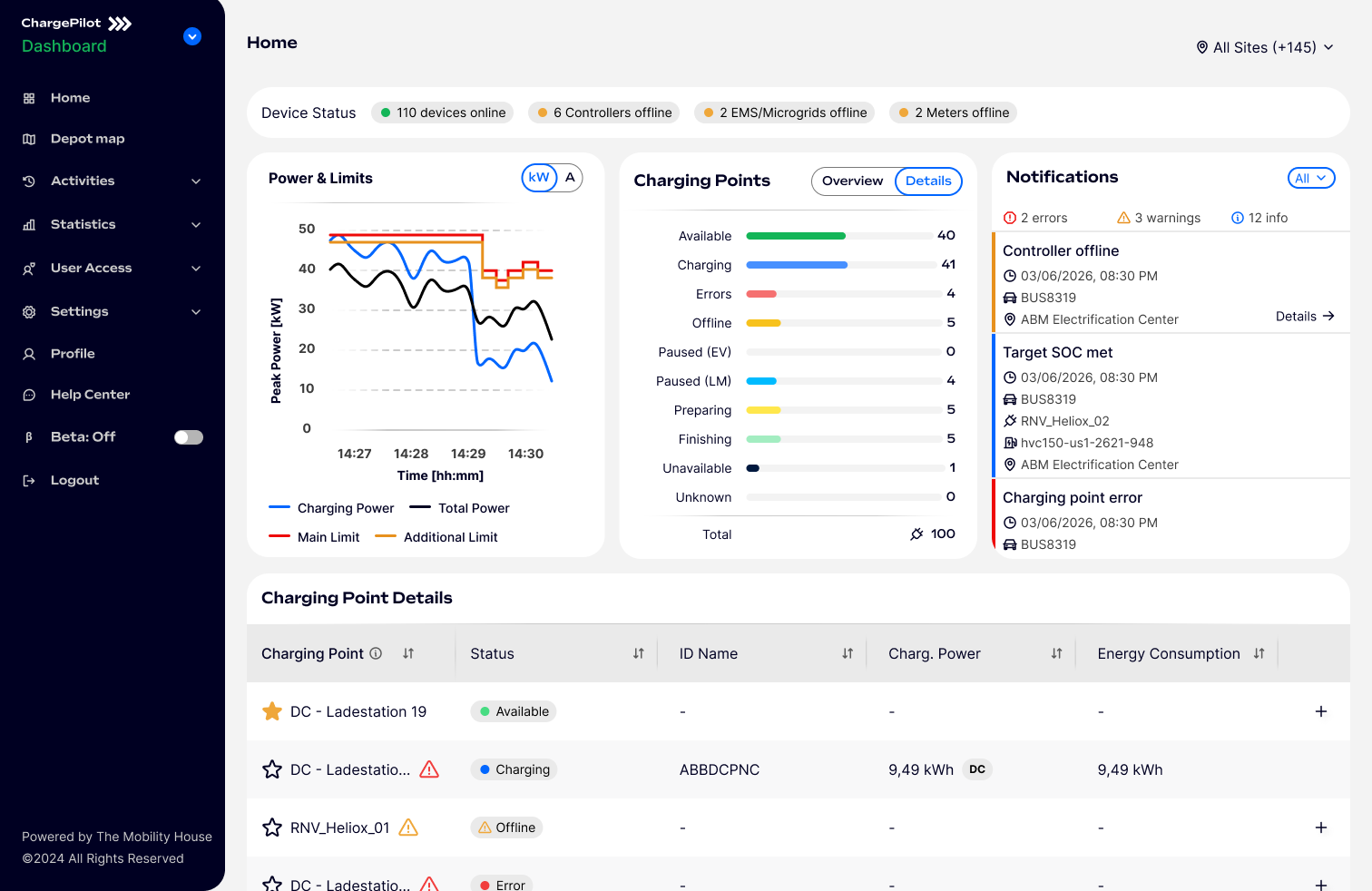
The Notifications card on the Home dashboard gives you a quick overview of issues across your fleet: live counts by severity, a filter, and a details view for each message — including step-by-step guidance for some warnings.
1. Quick overview
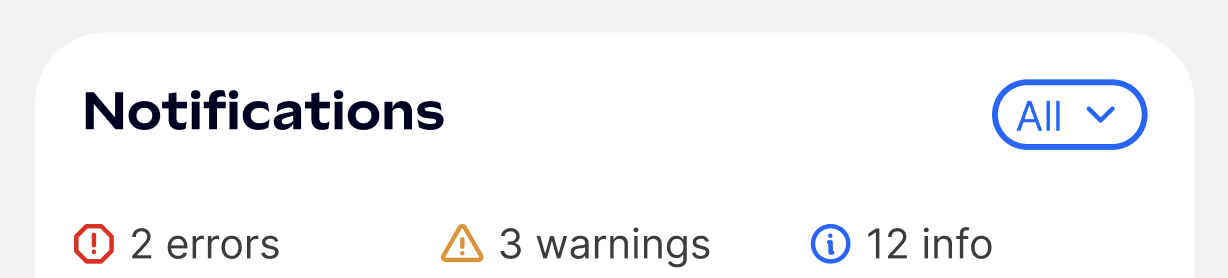
At the top of the card, a summary row shows live counts by severity — for example, "2 errors", "3 warnings", "12 info". This always reflects all notifications, regardless of which filter is selected.
Use the dropdown pill next to the card title (default "All") to narrow the list to Warnings, Errors, or Info only. The quick overview counts stay the same regardless of filter — only the list below changes.
3. Reading a notification
Each row is color-coded by severity (red = error, orange = warning, blue = info) and can include:
A clock icon with the timestamp of the event.
A vehicle icon with the vehicle or session ID (e.g., "BUS8319").
A charging icon with the vehicle name (e.g., "RNV_Heliox_02").
A hardware icon with the charging point or controller ID (e.g., "hvc150-us1-2621-948").
A pin icon with the site name — shown only when viewing more than one site at once.
Some rows also show a short gray subtitle with more detail (e.g., "High temperature").
4. Message details
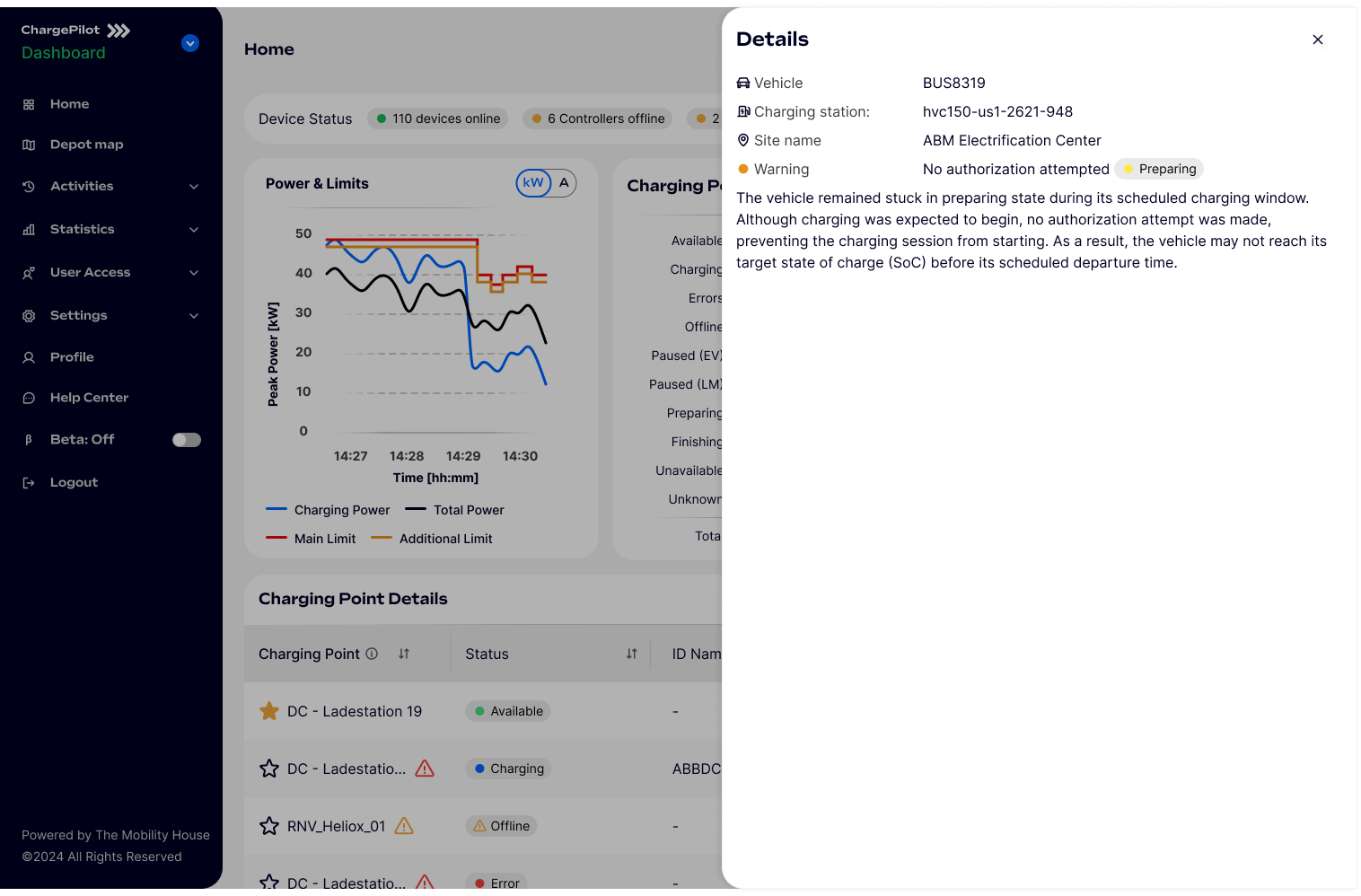
Click Details → on a notification to open a panel with the site name, message type and severity, and a plain-language explanation. For many warnings, the panel also includes numbered troubleshooting steps — for example, "Controller offline" walks you through checking the controller's internet and power connections and restarting it via its circuit breaker, and confirms charging continues uninterrupted while it's offline. The panel is read-only, with just a close (×) control.
5. Message types
Warnings – Controller offline, Charging station offline, No authorization attempt, Successful authorization (no power), Charging ended before target SoC, Rejected authorization.
Errors – Charging station error, Charging point error.
Info – Charging complete, Target SoC met.
6. Good to know
❌ Site name only appears on a row when viewing multiple sites at once.
❌ The details panel is read-only; any fix (like restarting a controller) still has to be done outside of ChargePilot. If there's nothing to show, the card simply reads: "You're all caught up!"
Was this article helpful?
That’s Great!
Thank you for your feedback
Sorry! We couldn't be helpful
Thank you for your feedback
Feedback sent
We appreciate your effort and will try to fix the article