Overview
The User Management feature lets organization administrators invite, manage, and remove users who need access to ChargePilot. Each user is assigned a role that controls what they can see and do in the platform, and access can be scoped to specific sites.
Who can use this feature: Users who were granted access to this feature.
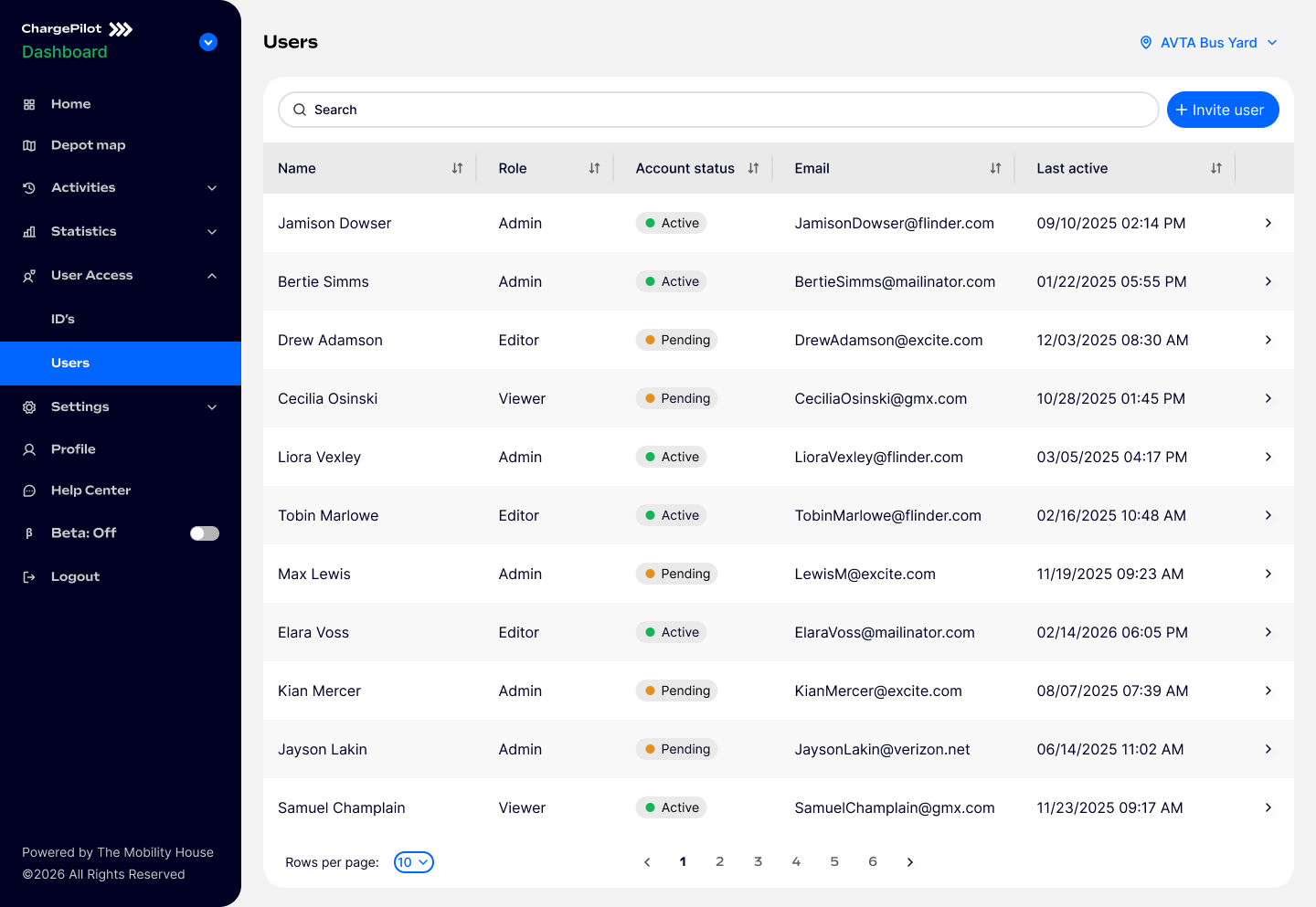
Accessing User Management
In the left sidebar, navigate to User Access → Users.
You will land on the Users table, which lists all users in your organization.
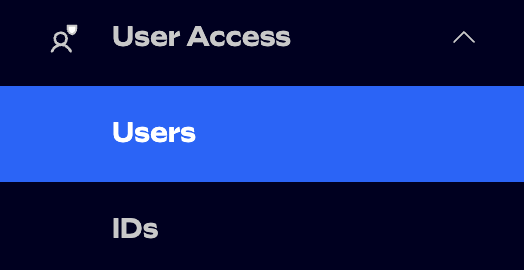
The Users Table
The table gives you a quick overview of everyone who has access to your organization.
Column | Description |
|---|---|
Name | The user's display name |
Role | The role assigned to the user (Admin, Editor, or Viewer) |
Account status | Whether the account is Active or Pending (invitation not yet accepted) |
The user's email address | |
Last active | Date and time of the user's last login |
ℹ️ Click the › arrow at the end of any row to open the user's detail panel.
Use the Search bar to filter users by name or email. The table is paginated — use the controls at the bottom to navigate pages or change the number of rows shown.
User Roles
Three roles are available. Assign the most restrictive role that meets the user's needs.
Role | Description |
|---|---|
Admin | Full access: can manage users, configure settings, and view all data |
Editor | Can edit charging configurations and manage day-to-day operations |
Viewer | Read-only access to data and reports |
ℹ️ Role permissions apply across all sites the user has been granted access to.
Account Statuses
Status | Meaning |
|---|---|
Active | The user has accepted their invitation and can log in |
Pending | An invitation email was sent but the user has not yet activated their account |
Inviting a User
Click + Invite user (top right of the table).
A panel slides in from the right. Fill the form.
Select a Role (Admin, Editor, or Viewer).
Under Sites, select which sites this user should have access to. You can search within the dropdown and expand accounts to see individual sites. Sites marked with a star (★) are priority sites in your account.
Click Send invitation.
The user will receive an email with a link to activate their account. Their status in the table will show as Pending until they do so. You can resend their invitation if they don’t open the invite.
ℹ️ SSO users: If your organization uses Single Sign-On, the user will be directed through your SSO provider when activating their account. No password is set in ChargePilot.
Inviting Multiple Users (CSV Upload)
To onboard several users at once:
Click + Invite user.
In the panel, switch to the Upload CSV tab.
Download the CSV template and fill in the required columns (first name, last name, email, role).
Upload the completed file.
Invitations are sent to all users in the file. You can choose to send invitations immediately or save the list for later.
⚠️ CSV Example file : The example file must be filled in english, user roles (Admin, Editor, Viewer)and permissions (Y/N).

ℹ️ Special characters: The name field does not accept special characters.
Viewing User Details
Click › on any table row to open the detail panel for that user. You will see:
Their name, email, assigned role and added permissions
The list of sites they have access to, grouped by account
Their current account status
Editing a User
Open the user's detail panel by clicking › on their row.
Click Edit in the panel header.
Update any of the following:
Name
Role
Site access (add or remove sites using the searchable dropdown)
Added permissions
Click Save.
A confirmation toast appears at the top of the screen when the changes are saved successfully.
Resending an Invitation
If a user has not yet accepted their invitation (status: Pending), you can resend it.
Click › on the pending user's row.
In the detail panel, click Resend invitation.
A new invitation email is sent to the user's address. The expiry clock on their original link resets.
Resetting a User's Password
Click › on the user's row.
In the detail panel, click Reset password.
The user receives an email with a password reset link. Their access is not interrupted until they use the link.
ℹ️ This option is available for non-SSO users only.
Deleting a User
Click › on the user's row.
In the detail panel, click Delete user.
A confirmation dialog appears — click Confirm to proceed.
The user is removed immediately and loses access to ChargePilot. This action cannot be undone. If the user needs access again, they must be re-invited.
ℹ️ Deleting a user also removes all site access permissions associated with their account.
Tips & Notes
A user can only be assigned one role at a time. To change their role, use the Edit flow.
Site access is managed per user. Two users with the same role may have access to different sites.
If you manage multiple accounts, the site selector in the invite and edit panels groups sites by account. Expand each account to see its sites.
All changes (invites, edits, deletions) generate a toast notification confirming success or surfacing any error.
Was this article helpful?
That’s Great!
Thank you for your feedback
Sorry! We couldn't be helpful
Thank you for your feedback
Feedback sent
We appreciate your effort and will try to fix the article